Tutorial 1- Installing and Uninstalling
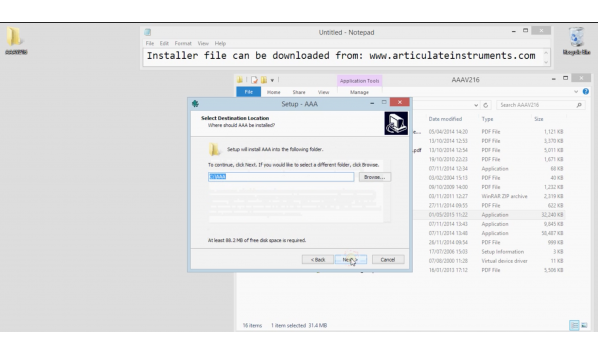
您的浏览器不支持 HTML5 视频。 Hello and welcome to the setup tutorial.This tutorial covers how to install the software for articulate assistant advanced.There are two ways to install the software.First is from the CD,Which contains the files seen in this window.Another is to download the executable file from the Web Address Articulate Instruments.com as seen here.For installation,Please ensure that you have administrative privileges before beginning.We will now begin.Then set up .exe file should be opened.You must agree to the license before continuing.Please read this in its entirety.You can now select the directory to install the software too.If you have an existing installation,It will overwrite it.It will also overwrite any custom user settings from your previous version.However,It will not overwrite your data.The following window shows options for which components to install.There are pre configured options available from the drop down menu,And you can also select individual components from this list.Dll files shown here and the multitude are for video drivers and the multichannel Drivers.If you are using Ultrasonix hardware,Please select corresponding to the software you use from these radio buttons.Default initialization files shown here refers to the any files in the present iterations of articulate assistant advanced.New versions of the software may require overwriting these files to install properly.We cannot guarantee the software will install correctly if you uncheck this box.If you are unsure of the version of WinEPG,You are using between these options shown here.Please leave this option at the default of EPG version too.In the next window,You can choose where to put a start menu shortcut and in the following,If you would like a desktop icon.You can review your choices and then proceed with the installation.When installation is completed,This dialog box should announce successful installation of the drivers used to interface with the software license key,Which is
收录时间:2020-02-12T05:20:28Z
使用资料正文
Hello and welcome to the setup tutorial.This tutorial covers how to install the software for articulate assistant advanced.There are two ways to install the software.First is from the CD,Which contains the files seen in this window.Another is to download the executable file from the Web Address Articulate Instruments.com as seen here.For installation,Please ensure that you have administrative privileges before beginning.We will now begin.Then set up .exe file should be opened.You must agree to the license before continuing.Please read this in its entirety.You can now select the directory to install the software too.If you have an existing installation,It will overwrite it.It will also overwrite any custom user settings from your previous version.However,It will not overwrite your data.The following window shows options for which components to install.There are pre configured options available from the drop down menu,And you can also select individual components from this list.Dll files shown here and the multitude are for video drivers and the multichannel Drivers.If you are using Ultrasonix hardware,Please select corresponding to the software you use from these radio buttons.Default initialization files shown here refers to the any files in the present iterations of articulate assistant advanced.New versions of the software may require overwriting these files to install properly.We cannot guarantee the software will install correctly if you uncheck this box.If you are unsure of the version of WinEPG,You are using between these options shown here.Please leave this option at the default of EPG version too.In the next window,You can choose where to put a start menu shortcut and in the following,If you would like a desktop icon.You can review your choices and then proceed with the installation.When installation is completed,This dialog box should announce successful installation of the drivers used to interface with the software license key,Which is needed to activate full functionality.You can still run the software without a license key.But in such a demo version,You will be unable to import or a record data.Although example data is available.This concludes installation.You can now run the software from your desktop shortcut or from the start menu.I will now show you how to uninstall the software.First navigate to the directory in which you have installed the software by default.This is AAA in the C root directory.You can find an uninstall executable file.Simply by runing You could now and install the software.It will also remove your user settings.This concludes set up tutorials.Please see further videos for running the software.